
Quick answer
Make your wheel, press Share, open the Embed tab and copy the code. In Google Sites, click Insert, then Embed, then Embed code. Paste, click Next, then Insert, and Publish. The wheel spins right on your page, with no ads and nothing loaded from other companies.
A spin wheel on your class site means students can pick a job, a brain break or a review question without you opening another tab. On Free Spin the Wheel, every wheel comes with embed code: a few lines you paste into Google Sites (or any site that accepts HTML), and the wheel spins right on your page.
Here's the whole process, what the embedded wheel loads (we measured it), and what to know before you put students' names on a public page.
Read the transcript
A spinner on your class site. Students spin to see their job for the week. Step 1: on your wheel, press Share, open the Embed tab, and copy the embed code. In Google Sites, click Insert, then Embed. Choose Embed code, paste, and click Next to see a preview. Click Insert, size the box, then Publish. Free, with no ads, no sign-up, and no requests to other companies. About two minutes. Free Spin the Wheel. Embed your class wheel: freespinthewheel.com/guides.
Try it: make your embed code
Type your options below, one per line. The wheel next to the box (below it on a phone) is the real embed, running inside this page exactly as it will on your site. Pick a size and copy the code.
Size
On Google Sites
Insert, then Embed, then the Embed code tab. Paste, press Next, then Insert. Step-by-step guide
Anyone who can see the page can see the wheel's entries. For a class, use first names or initials. Embedded wheels show no ads.
Spinner by Free Spin the Wheel
You can get the same code for any wheel on the site: press Share, then open the Embed tab. On a ready-made wheel such as the random name picker, there's also an Embed this wheel on your class site button under the wheel.
How to embed a spin wheel in Google Sites, step by step
- Make your wheel. Start in the wheel maker or open a ready-made wheel and customize it. Add your options and pick your colors.
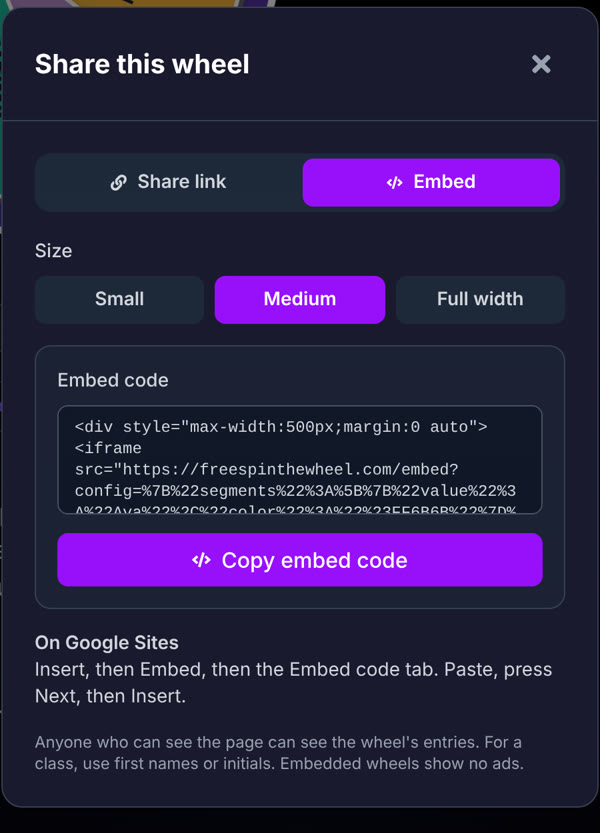
- Copy the embed code. On your wheel, press Share, open the Embed tab, pick a size (Medium suits most pages), and press Copy embed code.
- Open your page in Google Sites on a computer, and click where the wheel should go.
- Insert the embed. Google's help page puts it this way: "At the right, click Insert > Embed." Then choose the Embed code tab.
- Paste and insert. Paste the code, click Next to see a preview, then click Insert.
- Size the box. Drag the corners of the embed box on your page until the whole wheel and its credit line show. If the bottom is cut off, make the box taller.
- Publish. Google's instruction: "To publish your changes, at the top right, click Publish." Open the live page and give the wheel a spin to check it.
Share this wheel
On your wheel: Share, then the Embed tab, then Copy embed code.
Want the wheel to fill a page of its own? Google Sites can also add an embed as a whole page: in the Pages panel, hover over Add and choose Full page embed, then paste the same code.
Which size to pick
The Embed tab offers three sizes. Each one shrinks to fit a phone screen, so you only need to choose for the computer view.
- Small: a sidebar or a narrow column
- Medium: most class pages (the default)
- Full width: a page of its own, or a projector
| Size | Width x height | Good for |
|---|---|---|
| Small | 360 x 440 pixels | A sidebar, or beside a block of text |
| Medium | 500 x 580 pixels | Most class pages (the default) |
| Full width | Fills the column, 640 pixels tall | A page of its own, or showing it on a projector |
What the embedded wheel does
The embed is the full wheel, not a picture of one. On your page, students can:
- Spin by pressing the center button, with the same random spin as on our site.
- Remove or keep the winner. After each spin, the winner card offers Remove (so nobody is picked twice) or Continue Without Removing.
- Reset to bring every option back, mute the sound, or go fullscreen for the whole class to watch.
Under the wheel is a small "Spinner by Free Spin the Wheel" link. Please keep it; it's how other teachers find the tool.
What the embed loads, measured
School sites often have rules about what a page may load, so we measured it. We pasted the embed code into a test page, loaded it in a fresh browser and counted every request.
Your class site
Embedded wheel
freespinthewheel.com 14 requests
1 page · 9 code files · 1 stylesheet · 1 font · 2 images
Other companies 0 requests
- Ad networks
- Google Analytics
- Font services
- Social trackers
| What we checked | Result |
|---|---|
| Requests from other companies (ads, Google Analytics, font services) | 0 |
| Requests to freespinthewheel.com | 14 files (the wheel page, 9 code files, 1 stylesheet, 1 font, 2 images), plus one cookie-free visit count on the live site |
| Requests to font services | 0. Before November 22 it was 2, to Google Fonts; the font is now served by our own site |
| Cookies set | 0 |
| Ads shown | None. Embedded wheels never show ads |
| Data saved in the browser | Only the light or dark theme setting |
| Download size | About 0.6 MB the first time; browsers keep most of it for next time |
The visit count tells us how many times embedded wheels are opened. The wheel's options aren't stored on our servers: they travel inside the embed code itself. And the code asks the browser to load the wheel lazily, which MDN describes as waiting "until it reaches a calculated distance from the visual viewport", so a wheel far down the page loads only when someone scrolls toward it.
Students' names and privacy
The embed code contains your wheel's options. As our privacy policy says, "Shared wheel links contain encoded configuration data in the URL, which can be accessed by anyone with the link." On a public page, that means anyone who can see the page can see the names on the wheel.
In the U.S., student records are covered by FERPA. In the words of the Department of Education, FERPA "is a federal law that affords parents the right to have access to their children's education records... and the right to have some control over the disclosure of personally identifiable information from the education records." Your school or district decides what that means for a class website, so:
- Use first names, initials or student numbers, never full names.
- Check who can see the page. Ask your tech lead whether your class site is public or open only to people at your school.
- Or skip names entirely. Jobs, brain breaks, review topics and group numbers work just as well and carry no personal information.
- Follow your school's policy first. If it has rules about student names online, they come before anything here.
Embedding on WordPress and other sites
The code is a standard iframe, so it works on most site builders that accept HTML: look for a block called Embed, HTML or Custom code.
On WordPress, use a Custom HTML block. One catch: WordPress only keeps iframes for users allowed to post unfiltered HTML. Its documentation says that if a user lacks that ability "(for example, a Contributor), WordPress will sanitize the block's content," and iframes are on the list of tags it strips out. If the wheel disappears when you save, ask your site's administrator to add it for you.
If the wheel doesn't show up
| Problem | Fix |
|---|---|
| The box is empty or says the link is missing its options | Copy the embed code again from the Embed tab and paste the whole thing, from the first <div to the last </div> |
| The bottom of the wheel is cut off | Drag the embed box taller in Google Sites, or choose a smaller size |
| You changed your wheel but the embed didn't change | The options are saved inside the code. Copy the new embed code and replace the old one |
| The wheel vanishes when you save (WordPress) | Your account can't add iframes. Ask an administrator |
| Your site won't accept the code at all | Some site builders and school filters block embeds. Share the wheel's link instead, or ask your tech lead |
Ready to try it with your class? Your names, your colors, no sign-up.
Make your class wheelIdeas for a spinner on your class site
- Classroom jobs, like the wheel at the top of this page. Spin on Monday, Remove each job as it's taken.
- Brain breaks: stretch, a dance, a drink of water, a one-minute doodle.
- Review topics: one slice per unit, so students choose what to practice at home.
- Question of the day or a writing prompt for the morning routine.
- Group or table numbers for who presents next, with no names on the page.
For calling on students fairly in class, see our test: is a name picker wheel really random? We spun it 100,000 times.
Free: a one-page "spinner on your class site" checklist
The steps for Google Sites on one printable page, with the size guide, the privacy checklist and fixes for the three most common problems. Handy for a colleague or a tech-help day.
How we checked this
We followed every step on a real wheel. The Google Sites button names are quoted from Google's Sites Help page, read on November 22, 2026; Google sometimes moves buttons, so the names matter more than their positions. For the measurements, we pasted the embed code from the Embed tab into a plain test page on a different web address, opened it in a fresh Chromium browser with Playwright (a browser-automation tool) and logged every request, cookie and saved setting for six seconds. We ran it on the live site before moving the font onto our own server, and on the updated version of the site before it went live. We also tried the same embed code on a page of another live site we run, spun it, and removed a winner, then took the test page down. The WordPress, FERPA and iframe details are quoted from WordPress.org, the U.S. Department of Education and MDN, linked below.
Frequently asked questions
How do I embed a spinner wheel in Google Sites?
On Free Spin the Wheel, press Share on your wheel, open the Embed tab and copy the code. In Google Sites, click Insert, then Embed, then the Embed code tab. Paste, click Next, then Insert, size the box, and click Publish.
Is the embedded spin wheel free?
Yes. Embedding is free, needs no sign-up, and embedded wheels show no ads. Please keep the small "Spinner by Free Spin the Wheel" link under the wheel.
Does the embedded wheel track students or set cookies?
In our test, the embed set no cookies and loaded nothing from ad networks, Google Analytics or other companies. It makes one cookie-free visit count on freespinthewheel.com, and it saves only the light or dark theme setting in the browser.
Can students spin the wheel on my class site?
Yes. The embed is the full wheel: anyone on the page can spin it, remove or keep the winner, reset it, mute the sound and go fullscreen.
How do I change the options on an embedded wheel?
The options are saved inside the embed code, so edit your wheel, copy the new embed code from Share, Embed, and replace the old code on your page.
Is it safe to put students' names on an embedded wheel?
Anyone who can see the page can see the wheel's options. Use first names or initials, keep the page limited to your school if you can, and follow your school's policy on student names online. Or use jobs, topics or group numbers instead of names.
Why does my embedded wheel disappear in WordPress?
WordPress removes iframes for users who can't post unfiltered HTML, such as Contributors. Ask your site administrator to add the Custom HTML block for you.
Sources
- Add Google files, videos, website content, & more (Google Sites Help)
- What is FERPA? (U.S. Department of Education, Protecting Student Privacy)
- Custom HTML block (WordPress.org Documentation)
- <iframe>: The Inline Frame element (MDN Web Docs)